Two-person photo workflow
How to Swap Two Faces in the Same Photo
Swap two faces in one photo by detecting both people, selecting exactly two faces and cross-mapping each identity to the other person in one task.
Reviewed against the current production task limits and pricing logic.
Key takeaways
- Pair mode uses one photo and exactly two detected selections; it maps person A to person B and person B to person A in the same task.
- The target photo still supplies both hairstyles, bodies, clothing, expressions, framing, lighting and background; only the visible facial identities are intended to change.
- A pair exchange costs 12 credits (6 credits per selected target face × 2 faces), has no free trial and produces a result with no watermark and no account email.
- Use a sharp, permitted photo with two similarly sized, unobstructed adult faces; detection success does not guarantee a visually strong generated result.
Primary product sources
Check current first-party facts, prices and methods instead of relying on an undated directory listing.
1. A two-face exchange is a cross-map, not two unrelated uploads
To switch two faces in the same photo, open the multiple-face studio and choose “Swap two faces in one photo.” Upload one image containing both people. The detector returns the visible face regions, and pair mode requires exactly two selections. If the selected identities are A and B, the request sends B as the replacement for A’s target region and A as the replacement for B’s target region.
That mapping differs from the studio’s same-face and different-face modes. Same-face mode adds one external source portrait and applies it to selected people. Different-face mode accepts one separately uploaded replacement portrait for each selected target, up to 10. Pair mode needs no separate portrait because the two selected people supply the identities for each other.
Selection order does not change the intended exchange: the two chosen identities are mapped to one another. What matters is selecting only the two people you are permitted to edit. Other detected faces remain unchanged when they are not selected.
| Selected target | Replacement identity | Scene elements that remain the target reference |
|---|---|---|
| Person A | Detected identity from person B | A’s hair, body, pose, clothing, expression context and location |
| Person B | Detected identity from person A | B’s hair, body, pose, clothing, expression context and location |
| Any unselected person | No requested replacement | Original person and surrounding photo |
2. Choose one photo where both faces are usable
The best input shows both adults clearly, at a useful scale and without hair, hands, glasses, masks or props covering important features. Similar face sizes and camera angles reduce the amount of adaptation required. A front-facing pair is the clearest starting point, but a mild three-quarter view can work when both people turn in a similar direction.
Inspect each person separately. One sharp foreground face does not compensate for a tiny or blurred second face. Open the original file at full size and check the eyes, nose, mouth and jaw of both people. Avoid a screenshot copied through several messaging apps when the original camera file is available, because repeated resizing and compression can remove identity detail while the full image still looks acceptable on a phone.
The browser accepts JPG, JPEG, PNG and WebP for this workflow, with a 10 MB photo limit in the current pair interface. A successful upload and face-detection response prove only that the file and visible face regions passed those gates. They do not guarantee identity resemblance, clean edges or a particular output resolution.
- Use exactly two permitted adult subjects as the intended selections.
- Prefer similar face scale, head angle, expression intensity and lighting.
- Replace photos with severe blur, tiny faces or heavy facial obstruction before generating.
- Keep the least-compressed original rather than enlarging a small derivative.
3. Swap the two detected faces step by step
Sign in, open the multiple-face studio and select pair mode. Upload the one permitted photo. Face detection runs before generation and displays the returned face crops. Keep exactly two faces selected; if the photo contains more people, deselect everyone who should remain unchanged.
Review the two numbered selections and confirm that you have permission to use every face in the file. The action remains disabled until the photo is present, two faces are selected and the consent box is checked. The studio displays the 12-credit requirement (6 credits per selected target face) before submission. There is no free trial; this multiple-face task is paid with one-time credits.
After submission, keep the page open while the task is polled. When processing completes, inspect the result before downloading. If a task fails on our side, its credits are refunded automatically, once. A weak but successfully completed visual result is not the same state as a provider failure and should be diagnosed from the input before another run.
| Step | Action | Required state before continuing |
|---|---|---|
| 1 | Choose pair mode and upload one photo | Supported image, no more than 10 MB |
| 2 | Review detection and select two faces | Exactly two visible selections, numbered 1 and 2 |
| 3 | Confirm permission and submit | Signed-in account, consent and at least 12 credits (6 per selected face) |
| 4 | Inspect and download the result | Task status completed and both mappings reviewed |
4. Know what the result is supposed to change
A conventional face swap changes visible facial identity inside the existing target composition. Person A’s target region should receive person B’s identity while A’s hairstyle, body, clothes, pose, position and background continue to come from the original photo. Person B follows the reverse rule. This is not a full head swap, body swap, outfit transfer or hairstyle exchange.
Exact preservation of every non-face pixel is not guaranteed because the provider can blend a region larger than a strict facial mask. Judge the result in layers: first identity resemblance, then target expression and gaze, then boundary integration around cheeks, jaw, hair and ears, and finally whether clothing, body and background remain coherent. A changed hairstyle should not be advertised as the intended behavior of pair mode.
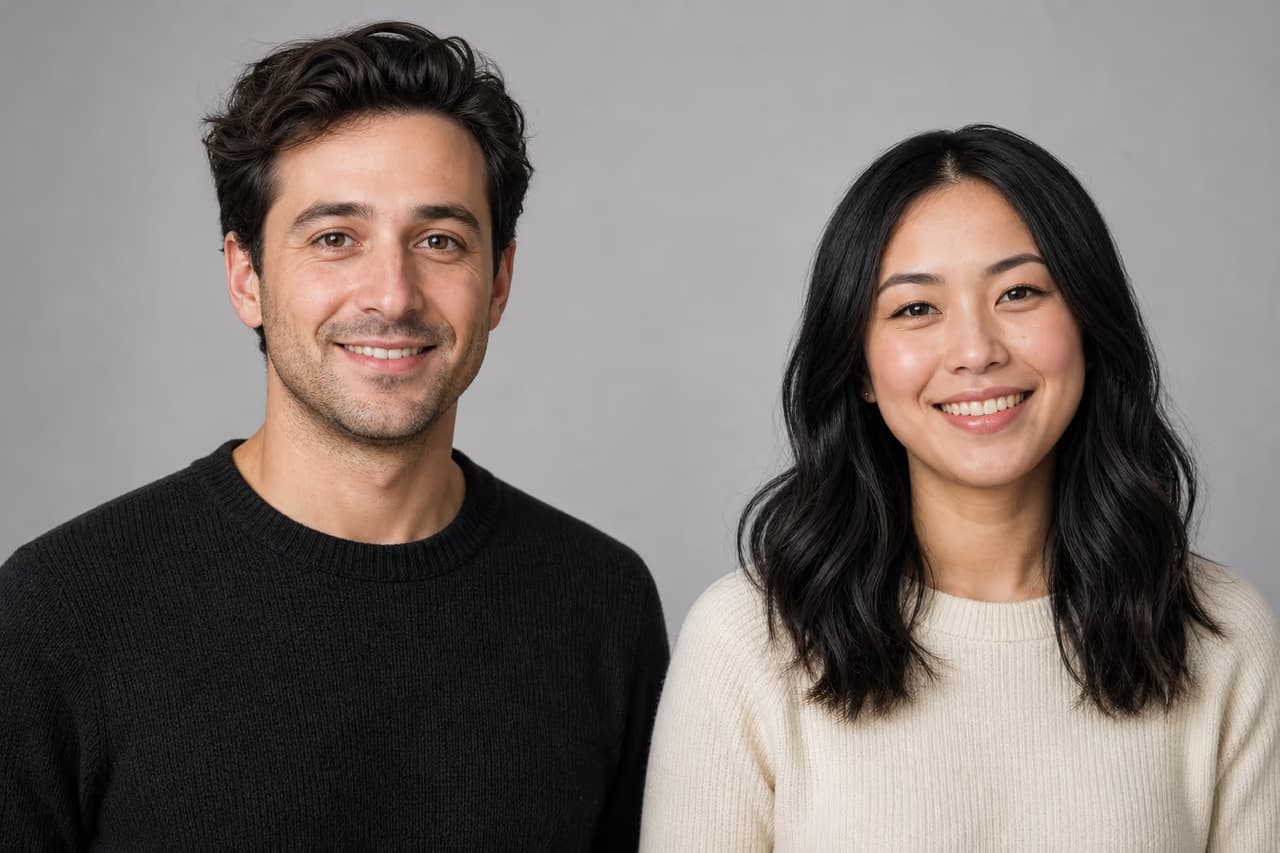
The synthetic adult photo published above is an original input illustration, not a claim that every pair will produce the same quality. It was created for this guide and does not depict a customer, named person or public figure. Production output varies with both selected faces, the target composition, queue conditions and upstream-provider behavior.
5. Diagnose a weak pair result before paying again
When only one side looks weak, compare that target’s face size, angle, obstruction and local lighting with the other side. The failure can come from the identity being supplied by one selected crop or from the target region receiving it. Use a clearer original where both people have visible features instead of repeatedly submitting the unchanged file.
When both sides look soft, inspect global compression and motion blur. When the identities look mixed, choose a photo with more distinctive, front-facing detail and less facial overlap. When a jaw or cheek edge looks unnatural, reduce the angle difference and avoid hair, hands or accessories crossing that boundary. A larger file is useful only when it contains more recoverable facial detail.
Run the readiness checker for file-level evidence, but treat its result as preflight rather than a generation guarantee. Resolution, lighting, contrast, face count and face-region sharpness can identify avoidable risk. They cannot predict provider availability, exact identity resemblance, pose compatibility or the final blend for a particular pair.
| Visible problem | Check first | Next input change |
|---|---|---|
| One exchanged face is weak | That person’s scale, angle and obstruction | Use a photo where both faces are similarly clear |
| Both exchanged faces are soft | Original resolution, motion blur and compression | Return to the camera original or choose another frame |
| Boundary looks unnatural | Hair, hands, glasses and lighting around the jaw | Reduce occlusion and angle or lighting mismatch |
| A face was not detected | Face size, frame edge and profile angle | Crop closer or choose a more frontal photo |
6. Verify cost, paid output and retention before submission
FaceSwapAI: one image costs 6 credits; multiple-face swap costs 6 credits per selected target face; video and GIF cost 3 credits per server-measured input second, rounded up, with a 9-credit minimum.
Pair mode is paid-only. Every result has no watermark and never contains the account email. There is no free trial in any workflow: every task is paid with one-time credits, sold as 600 credits for $19.99, 900 credits for $29.99 or 3,150 credits for $99.99, and credits never expire.
Uploaded task files and generated task files are scheduled for deletion after 24 hours and may be removed earlier; upstream-provider policies also apply. Download an approved result while it is available and retain any required consent record in your own controlled storage. Every paid result is HD. No instant completion time, 4K output, exact resolution or guaranteed visual result is promised.
7. Obtain consent from both people and disclose realistic edits
Use only a photo you own or are allowed to edit, and obtain consent from both identifiable people whose identities are exchanged. If other people appear in the photo, their presence can still raise privacy or publication concerns even when their faces are not selected. A product checkbox records your confirmation; it does not create permission on another person’s behalf.
Disclose that the image is altered whenever viewers could reasonably mistake it for a real event, relationship, endorsement or statement. Do not use pair exchange for non-consensual intimate imagery, deceptive impersonation, harassment, illegal activity or content involving minors. A technically convincing result increases the need for context rather than removing it.
For a group joke where the same permitted identity should appear on several people, use the separate same-face mode. For repair work such as replacing a blink with another frame, use a photo-editing workflow built for restoration rather than presenting an identity swap as factual repair.
Ready to apply the checklist to your own permitted media?
Questions this guide answers
How do I swap two faces in one photo?
Choose pair mode in the multiple-face studio, upload one permitted photo, select exactly two detected faces, confirm consent and submit the 12-credit task (6 credits per selected face).
Do I need separate source photos for both people?
No. Pair mode uses the two selected face crops from the same photo and cross-maps each identity to the other target. Same-face group mode is the workflow that adds one separate source portrait.
Can I switch three people in one task?
Yes. Choose different-face mode, select three detected targets and upload one replacement portrait for each. Pair mode still requires exactly two people, while same-face mode applies one source to all selected targets.
Is swapping two faces free?
No. A pair exchange is a paid multiple-face task costing 12 credits (6 per selected target face). There is no free trial: every task is paid with one-time credits, from 600 credits for $19.99.
Will the paid pair result show my email or a watermark?
No. Every result, including paid multiple-face output, has no watermark and never contains the account email.
Why can I not select a third face in pair mode?
Pair mode intentionally requires exactly two selections for reciprocal cross-mapping. Switch to different-face mode for three or more independent source-to-target mappings, or same-face mode to apply one source to up to 10 targets.